
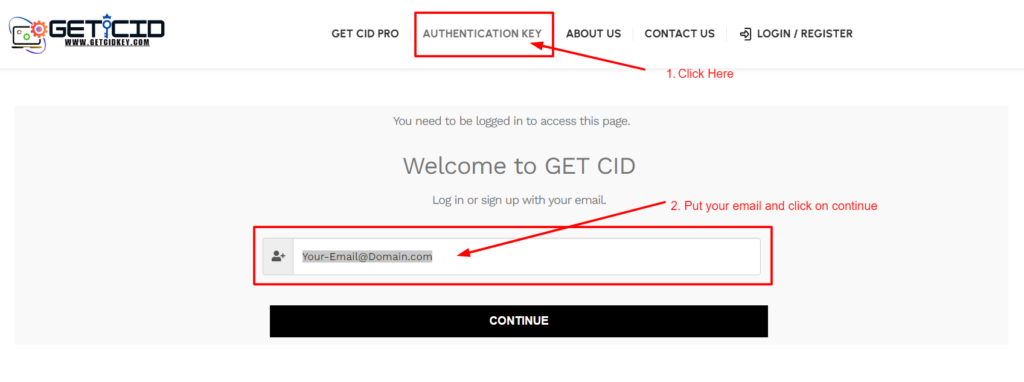
Begin by clicking on 'Authentication Key' in the menu and proceed to the 'Redeem Your CID Authentication Key' page.
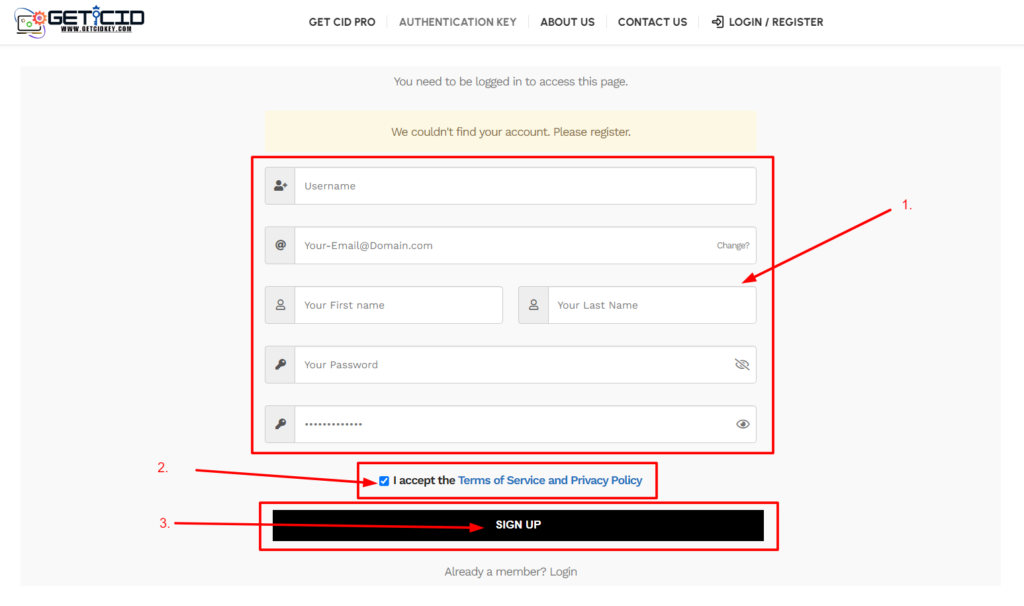
After entering your email in the provided section and clicking on the 'Continue' button, our system will check if you have an existing account on our site. If you do, simply enter your password to proceed with logging in. If not, please fill out the requested fields including username, email, first name, and last name. After entering a new password, click 'I accept the Terms of Service and Privacy Policy,' followed by the 'Register' button to automatically log in to your account.
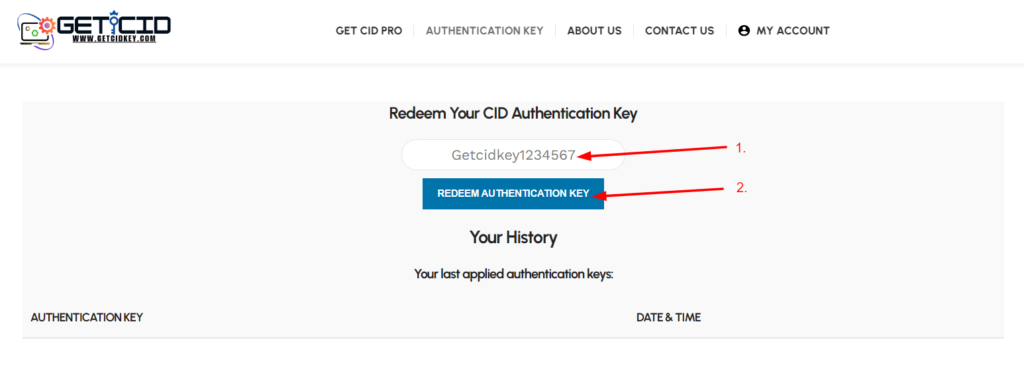
After filling out the form, enter your CID Authentication Key (example: GETCIDKEY123456) and click on the 'Redeem Authentication Key' button. Your CID generation limit will be granted within seconds.
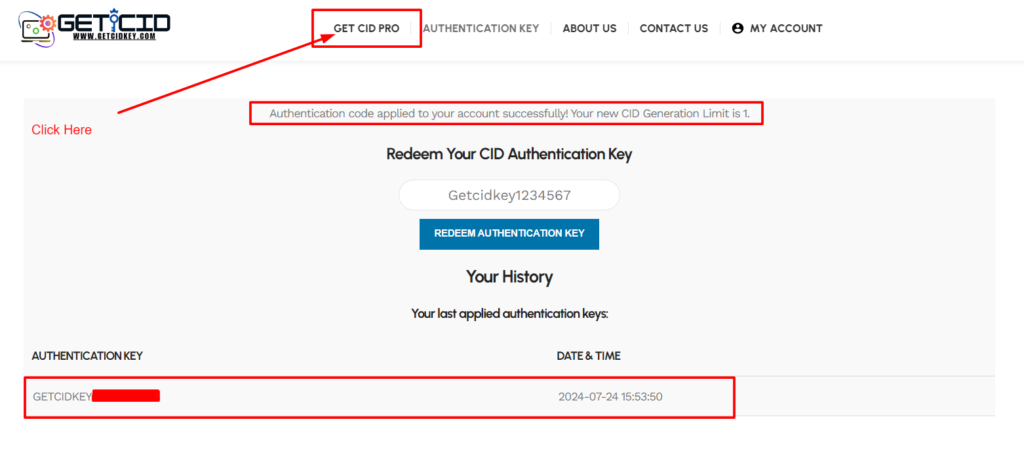
After redeeming your Authentication Key, please proceed by clicking on the 'Get CID Pro' button in the menu.
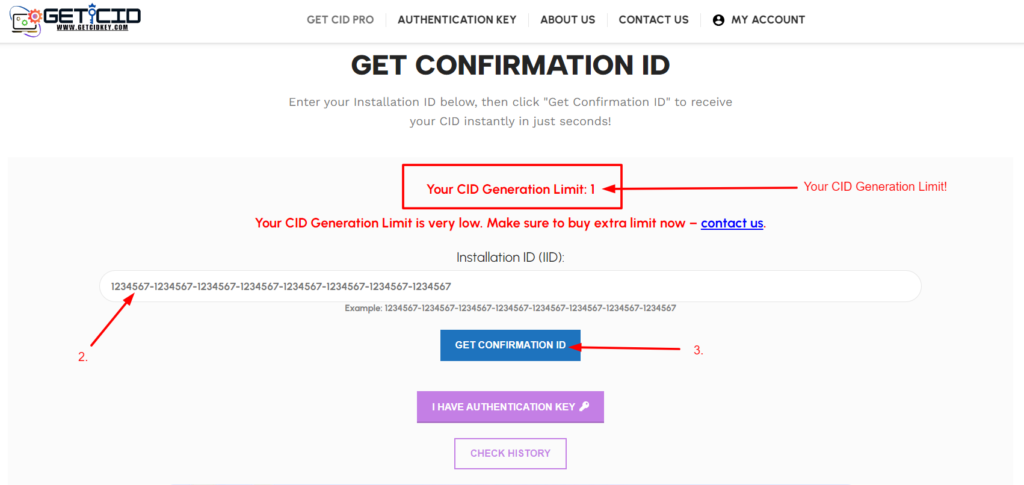
Afterwards, you will be directed to the 'Get Confirmation ID' page where you can view your latest CID generation limit. Enter your installation ID in the provided field and click on the 'Get Confirmation ID' button.
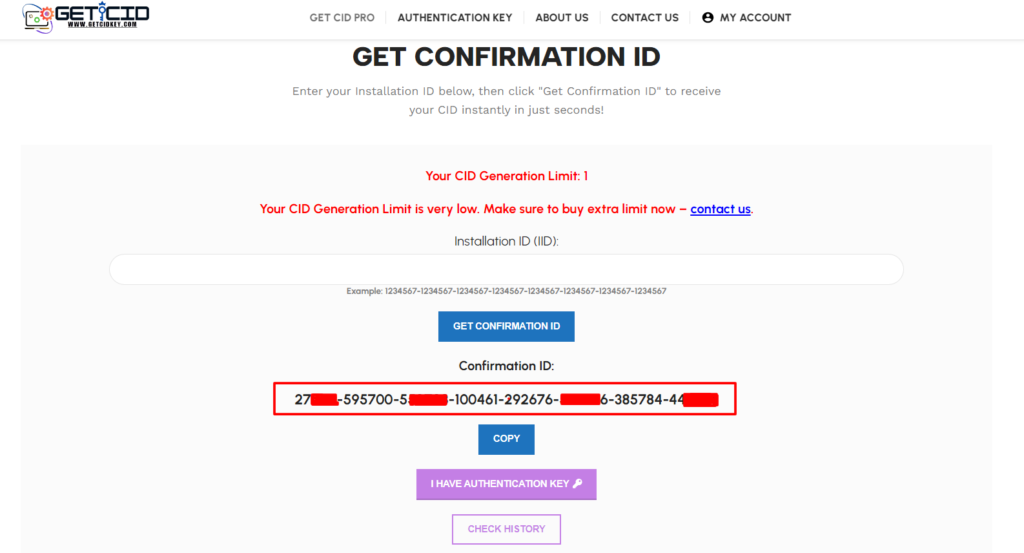
Congratulations! Your Confirmation ID is now available. Simply copy it and paste it into the Office's activation form, then click 'Next.' Afterward, restart your computer to begin enjoying your activated software.
Note: In the rare event of encountering errors such as 'API not working' or similar issues, simply reload the page and try again. Such occurrences are rare, affecting only 1% of cases. If issues persist, please contact your Authentication Key provider for further assistance.